Point them
The nine marks, aiming by the picture, steering with Aim, dressing the stage, and Moves.
Do this
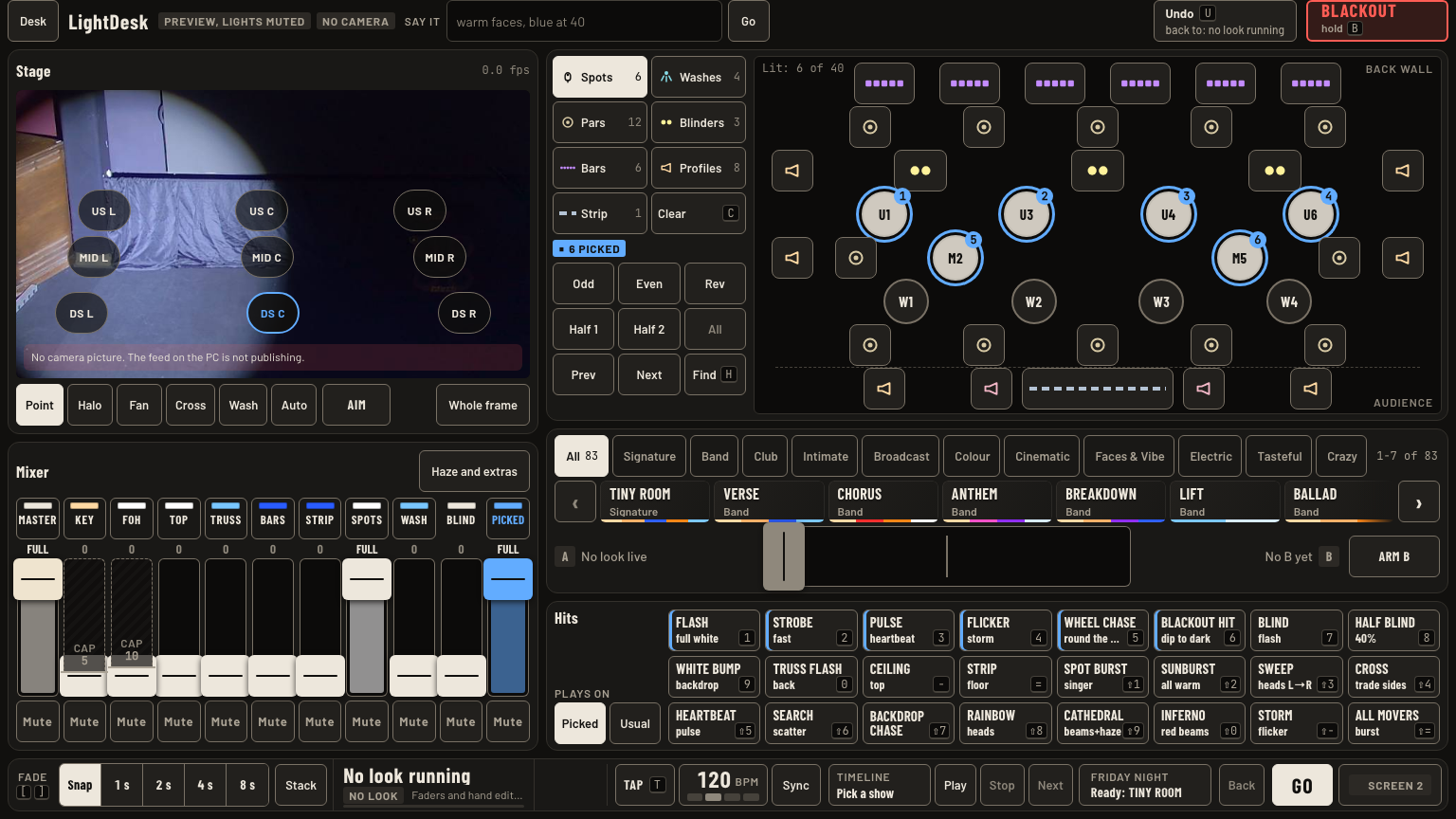
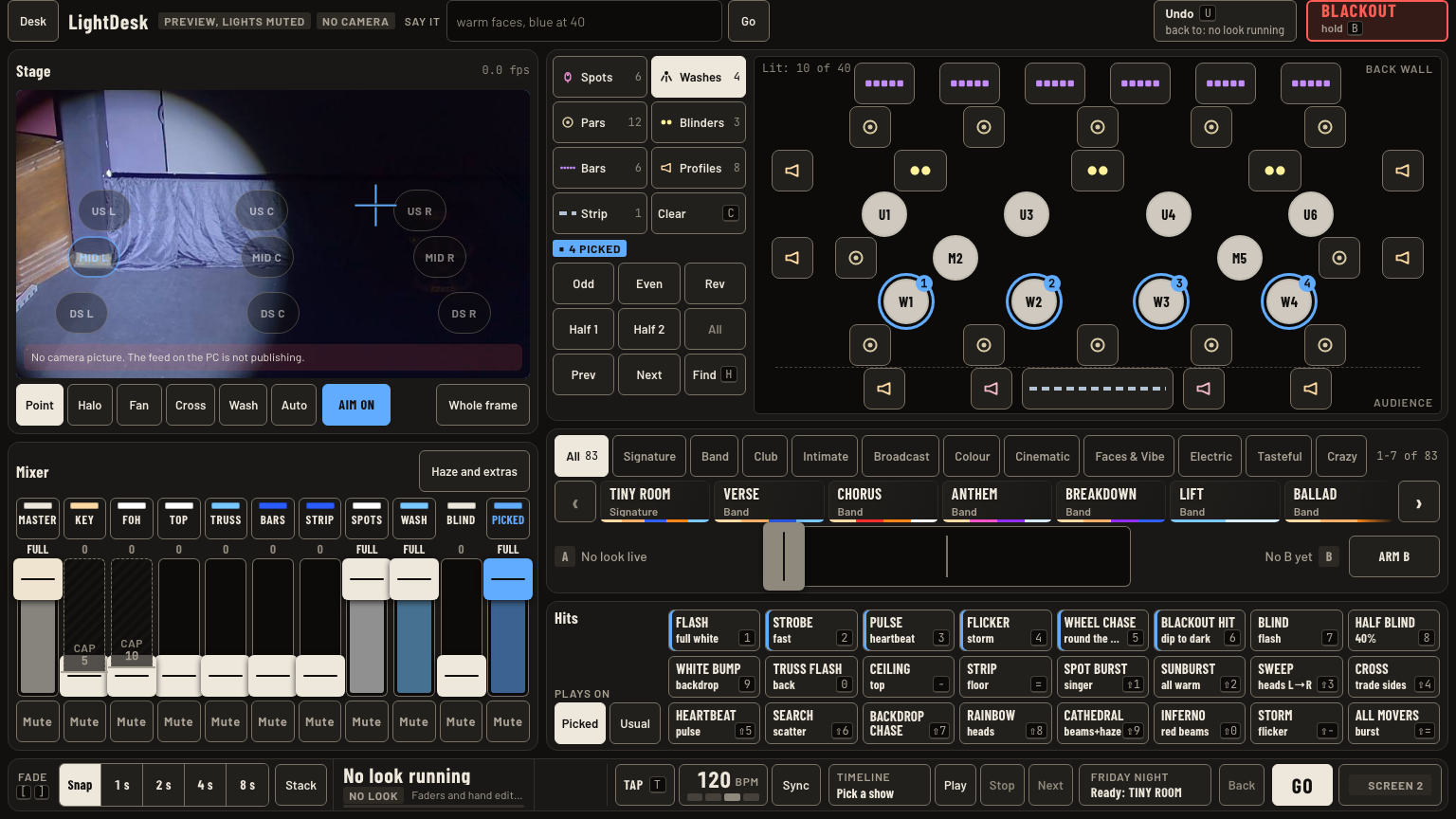
- Pick moving heads: Spots, Washes, or any round named light. Fixed lights cannot move.
- Tap one of the nine marks on the stage picture: US, MID or DS, by L, C or R. The picked heads go to full and point there.
- Or tap the picture itself. The picked heads point at that spot.
- Steer by hand: in Point mode, turn on Aim beside the mode buttons, then drag on the picture. A crosshair follows your finger and the heads follow the crosshair. Tap Aim again to turn it off.
- Dress the stage: tap Halo, Fan, Cross or Wash, then tap a spot on the picture, not a mark. Your pick takes that spot, and every other head builds a pattern around it in the opposite colour.
- Auto picks Halo, Fan or Wash for you. Point goes back to plain aiming.
- Moves live on screen 2: Orbit, Sweep, Figure 8, Breathe, Wander circle the mark the heads point at.
Keys and gestures
| Press | What happens |
|---|---|
| Tap a mark | Picked heads to full, pointed there. |
| Tap the picture | Point at that spot. |
| Aim, then drag the picture | Heads steer with the crosshair. Point mode only. |
| Halo, Fan, Cross, Wash | Then tap the picture: dress the stage around it. |
| Auto | Chooses the pattern by how many heads are free. |
| Whole frame | Shows the camera's full frame instead of the stage crop. |
| U | Puts the heads back. |
Good to know
- Halo rings the spot, Fan lines shafts upstage of it, Cross trades diagonals through it, Wash opens everything over the stage.
- Dressing also tints the backdrop and asks for key light on faces. The KEY cap still holds the key at 5.
- No camera picture? The nine marks still aim true.
- Aim moves moving heads only. With only fixed lights picked, Aim says so and nothing moves.
- Aim turns itself off when you leave Point mode. Turn it on again when you come back.
- Without Aim, a drag on the picture does nothing. That keeps a stray swipe from swinging the heads.