Pick lights
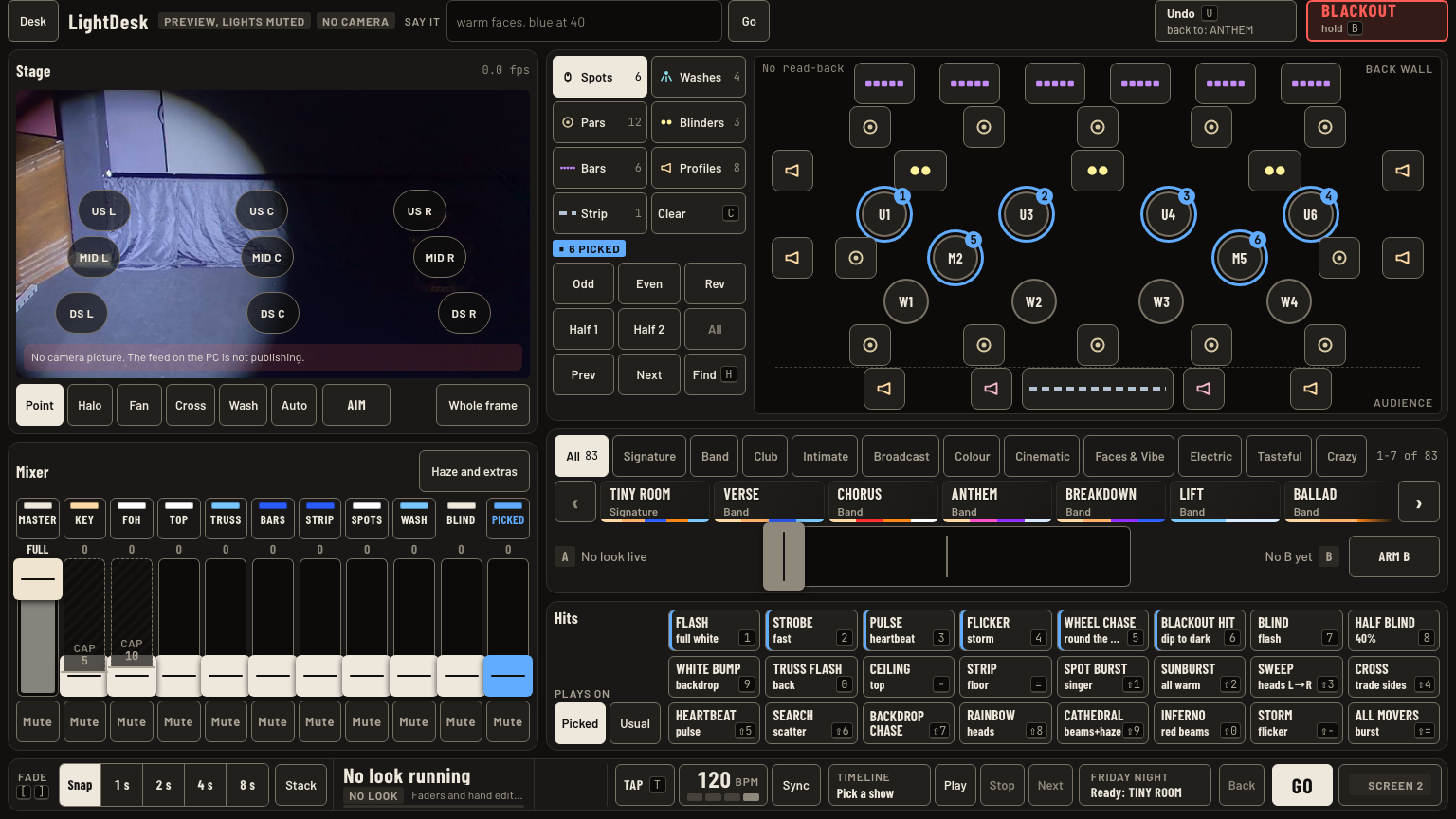
The map, the kind buttons, trimming a pick, and holding a light to find it in the room.
Do this
- Tap a light on the map. It turns blue. Tap it again to let go.
- Tap a kind: Spots, Washes, Pars, Blinders, Bars, Profiles or Strip picks all of that kind. Shift-tap adds a kind.
- Shift-tap single lights to add or drop them. Small numbers show the pick order.
- Trim the pick: Odd, Even, Rev, Half 1, Half 2. All brings the whole pick back. Prev and Next step one light at a time.
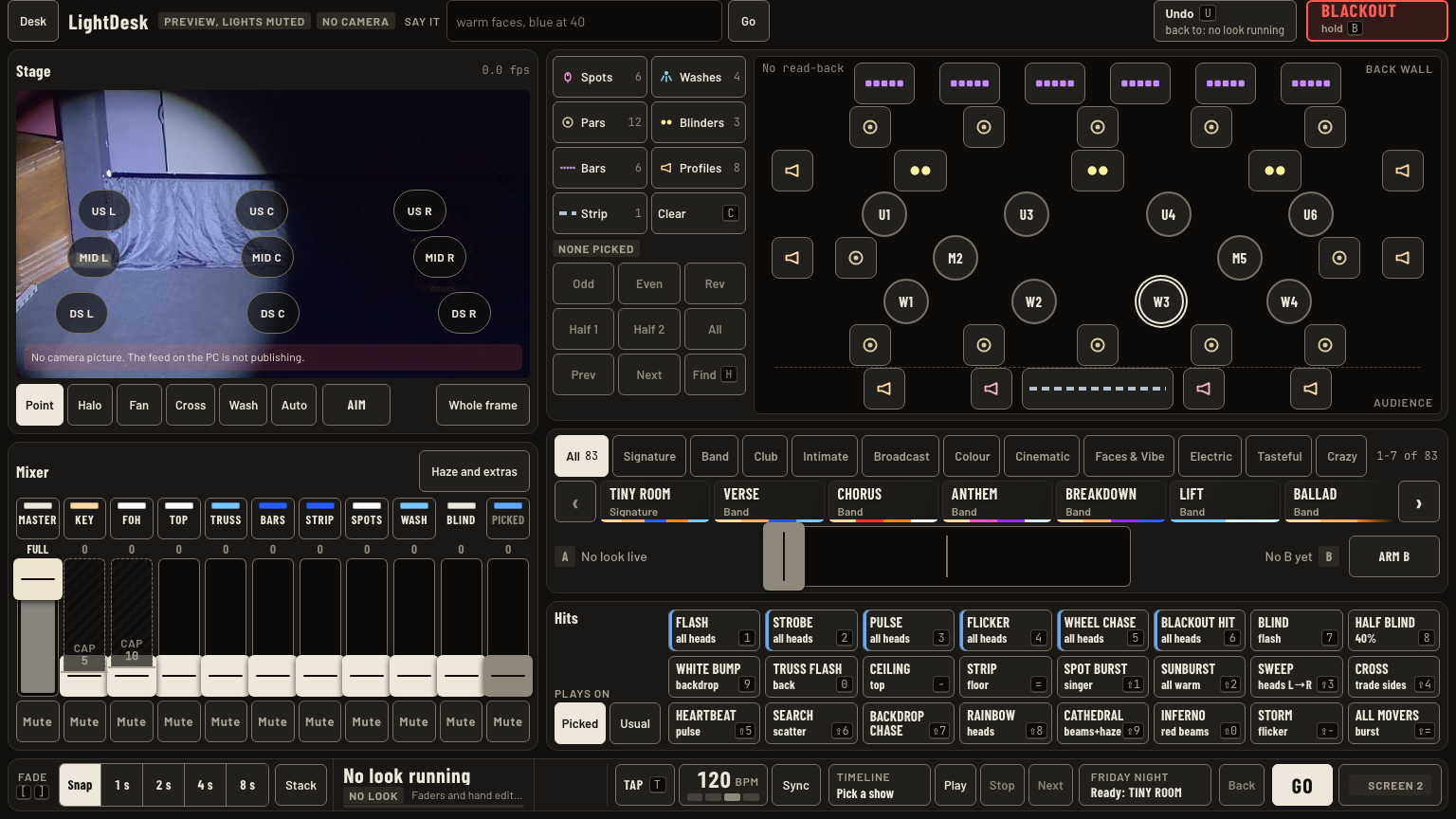
- Hold a light on the map for half a second: it breathes in the room so you can find it. Let go and it stops.
- Clear or C lets go of everything.
Keys and gestures
| Press | What happens |
|---|---|
| Tap | Pick one light, or let it go. |
| Shift-tap | Add or drop a light or a kind. |
| Hold 0.4 s | Find that light in the room. |
| H or Find | Find the whole pick. Again to stop. |
| C or Clear | Let go of the pick. |
Good to know
- Picking changes nothing on stage. Find is the only pick tool the room sees, and it stops by itself after 2 minutes, on a new pick, or on a blackout.
- The round named lights move: U1 to U6 and M2, M5 are spots, W1 to W4 are washes.
- There is no lasso on the map. Use a kind button, then Odd, Even or the halves.